Unity's OpenXR Setup
To get started, follow the instructions to enable the OpenXR plug-in.
OpenXR#
All versions of this Asset require Unity Version 6.
Several Unity Packages are also needed and you will be prompted to install these when you download OpenWorlds VR into the Unity Editor.
We also suggest that for both Game Creator 2 and the Unity starter packs, the latest update is installed.
The following pages will detail which packages are required and the setup configuration needed.
OpenXR Packages#
The following is a list of the main packages required for OpenWorlds VR to operate. They should be automatically installed when OpenWorlds VR is downloaded.
- Cinemachine
- Input System
- OpenXR Plugin
- XR Interaction Toolkit
- XR Plugin Management
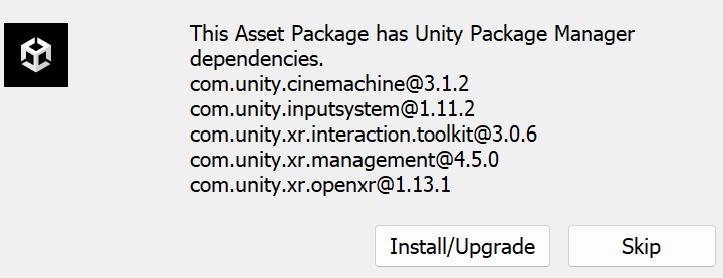
These packages should be the current version and may require other packages that will be installed automatically.
OpenXR Installation#
Once the packages have been installed, navigate to Project Settings and XR Plug-in Management, Desktop tab as shown below.
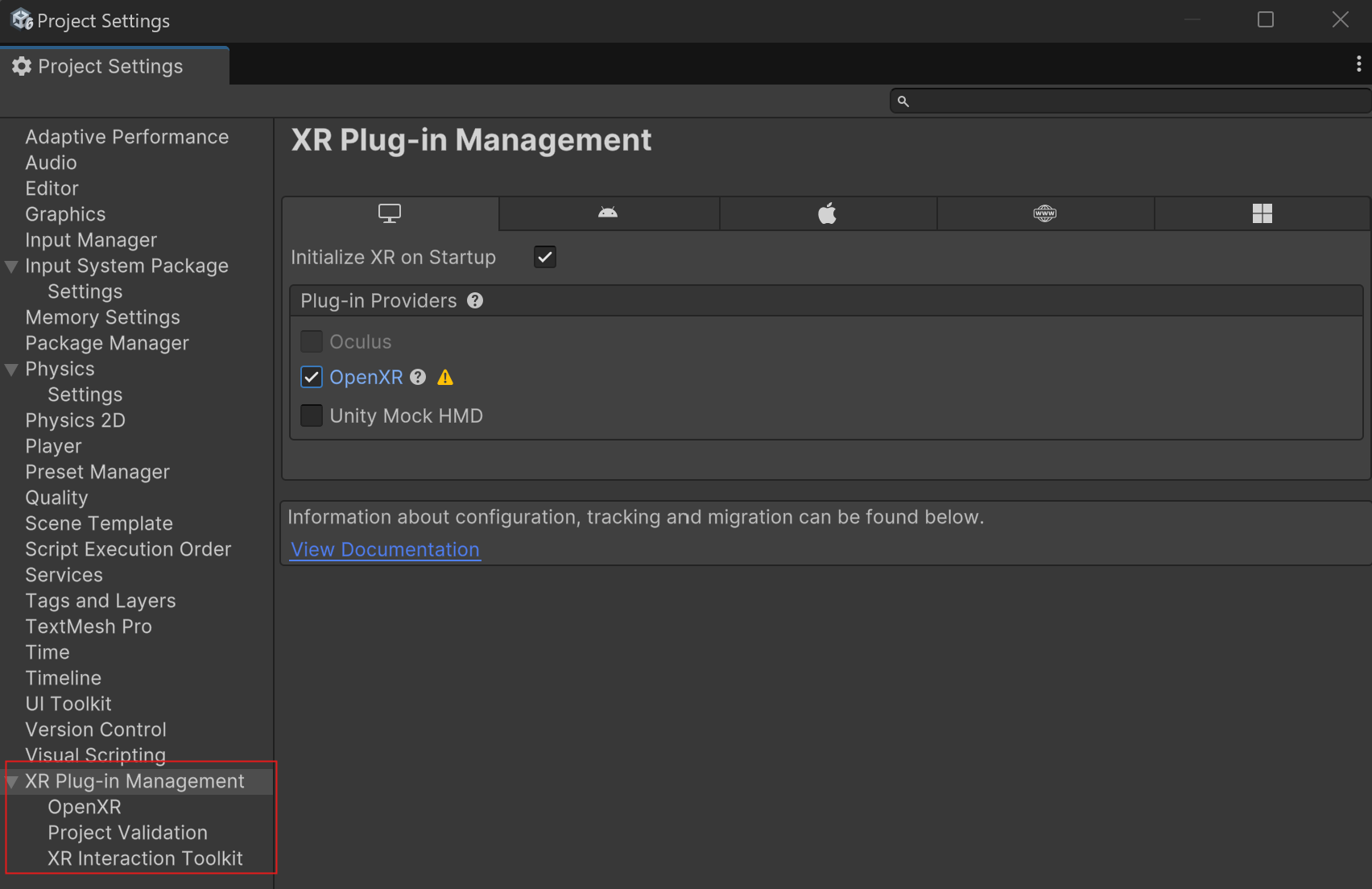
This Asset utilises Unity's OpenXR plugin and therefore you need to check the OpenXR checkbox. It will show errors (yellow triangle) but we will fix those after we configure the plugin.
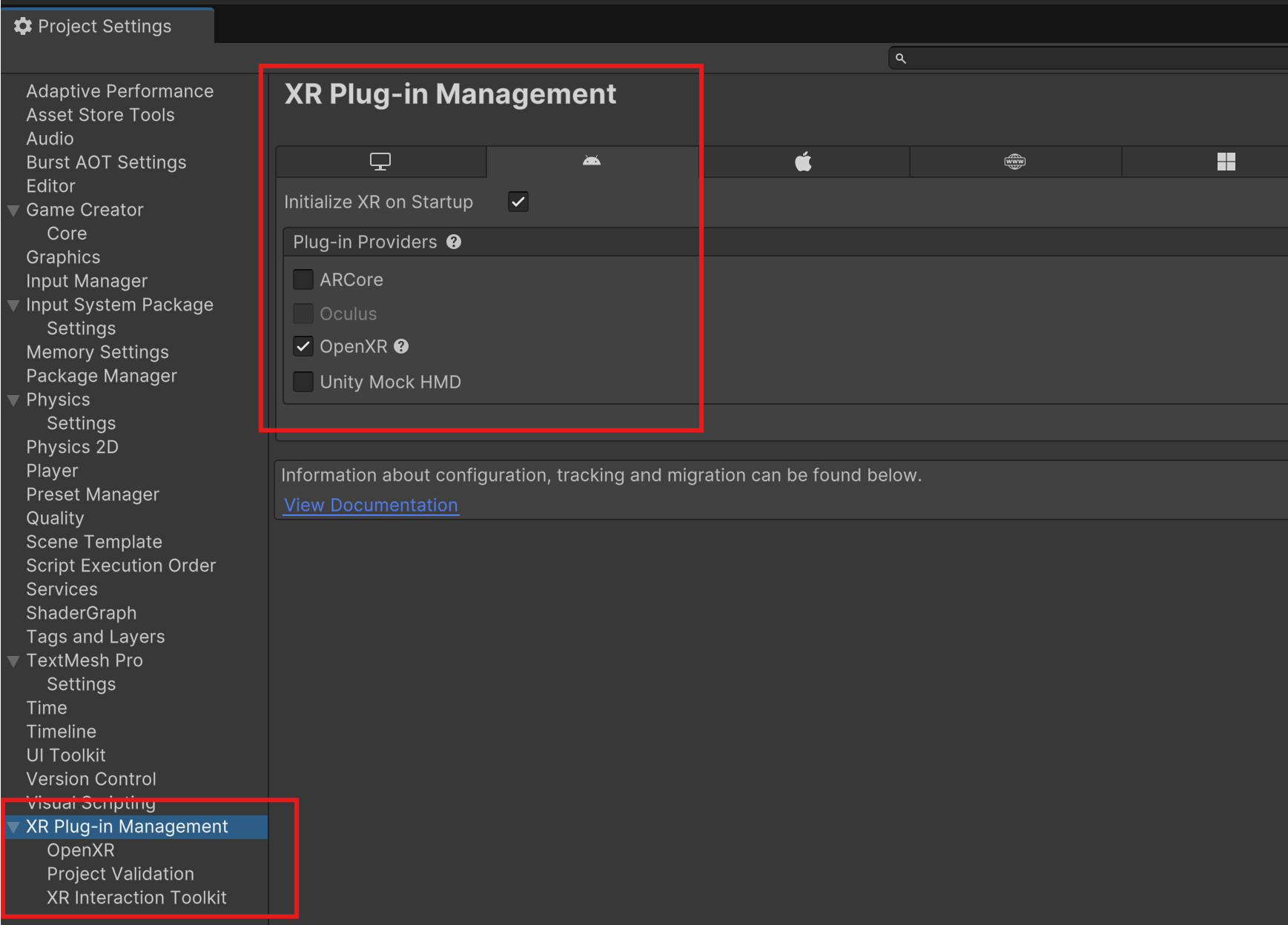
Also select OpenXR for Android if you are wanting to build for StandAlone Meta Quest devices.
OpenXR Configuration#
While still in Project Settings, select OpenXR under the XR Plug-in Management entry. Select the Desktop Tab.
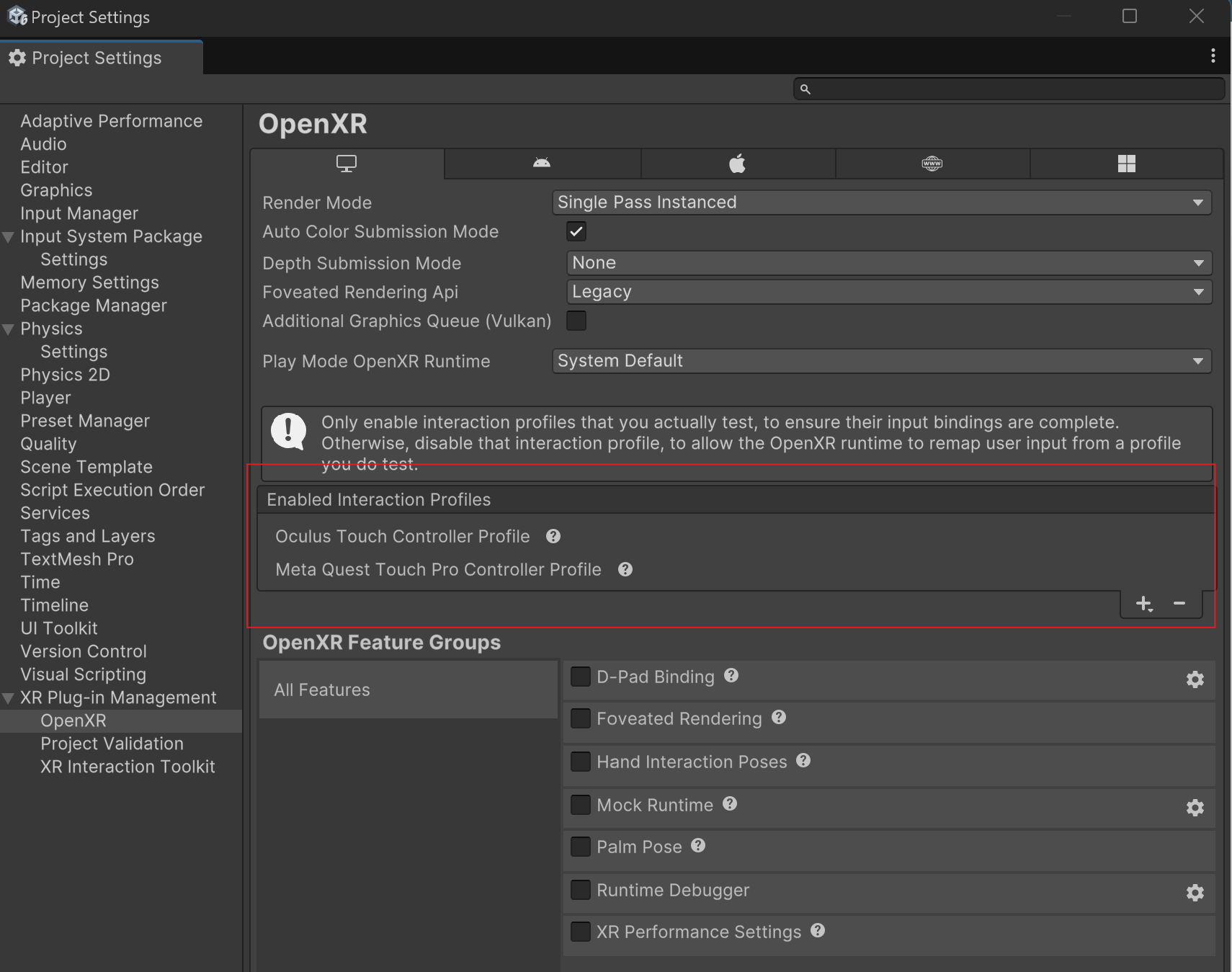
At least one Interaction Profile must be added. In this example, we have added the Oculus Touch and the Meta Quest profiles.
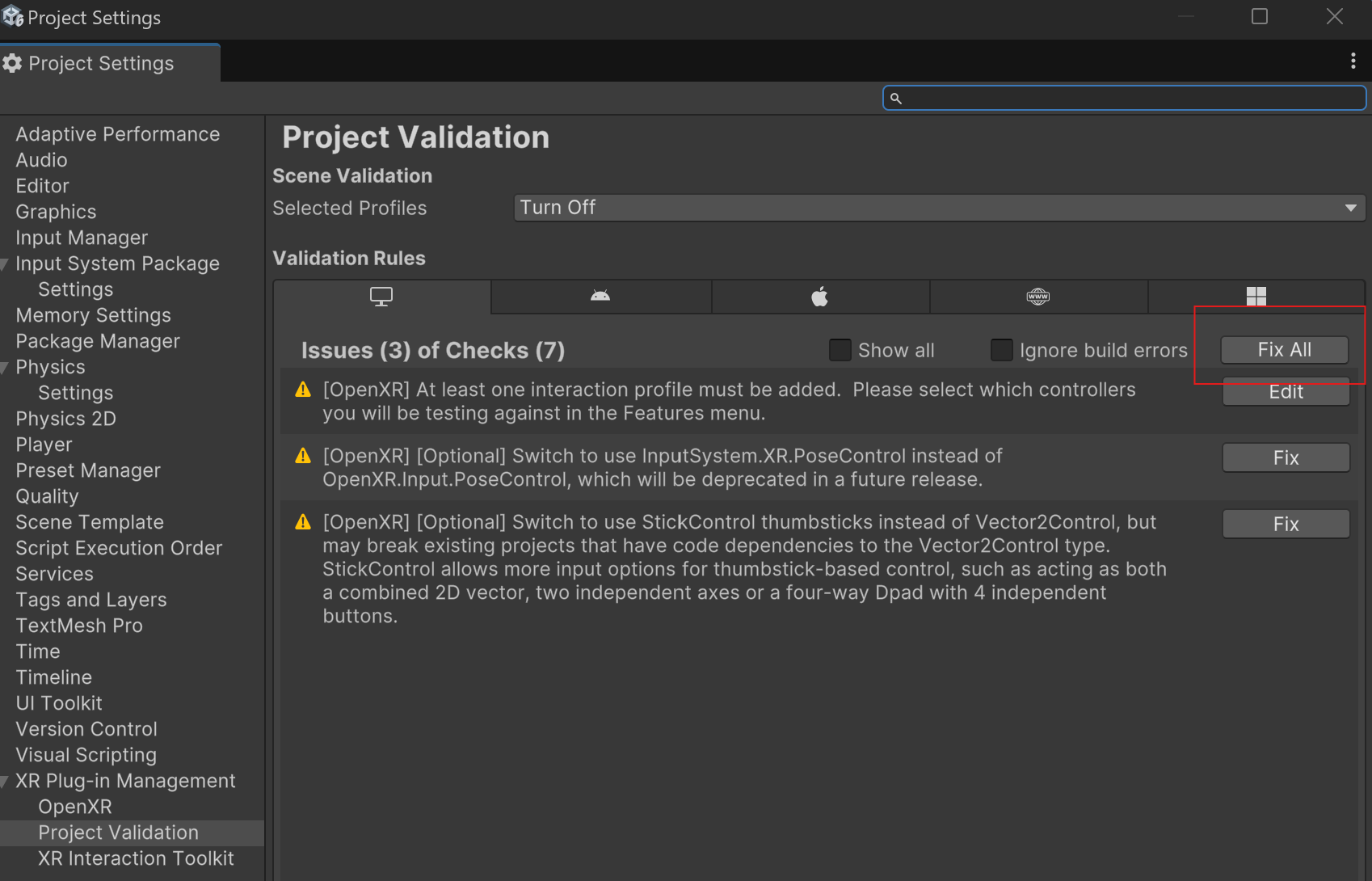
Finally, select the Project Validation entry, and click Fix All. Each of the errors should be automatically resolved.
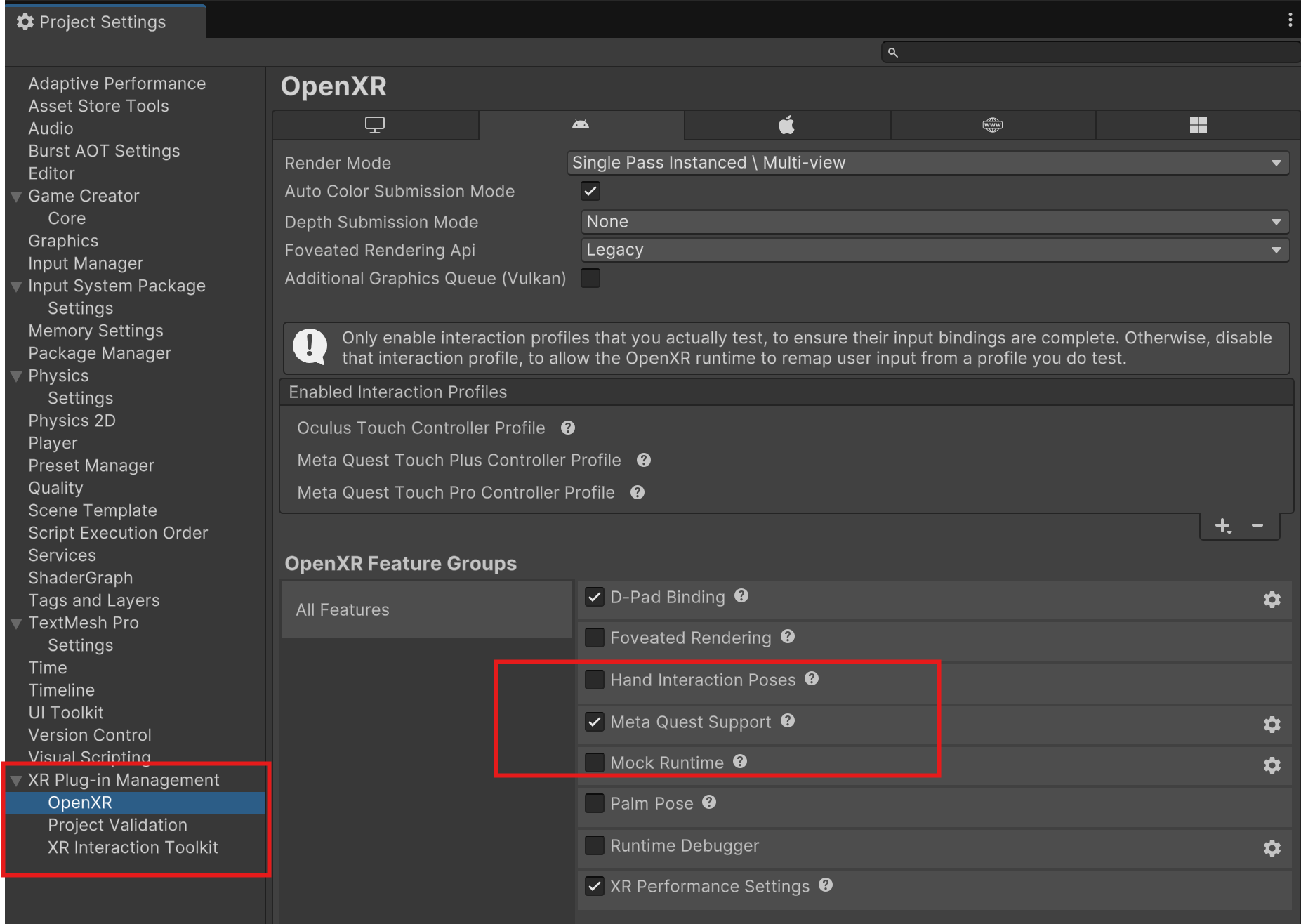
When building for Android StandAlone, you need to add a minimum of the Meta Quest Feature.
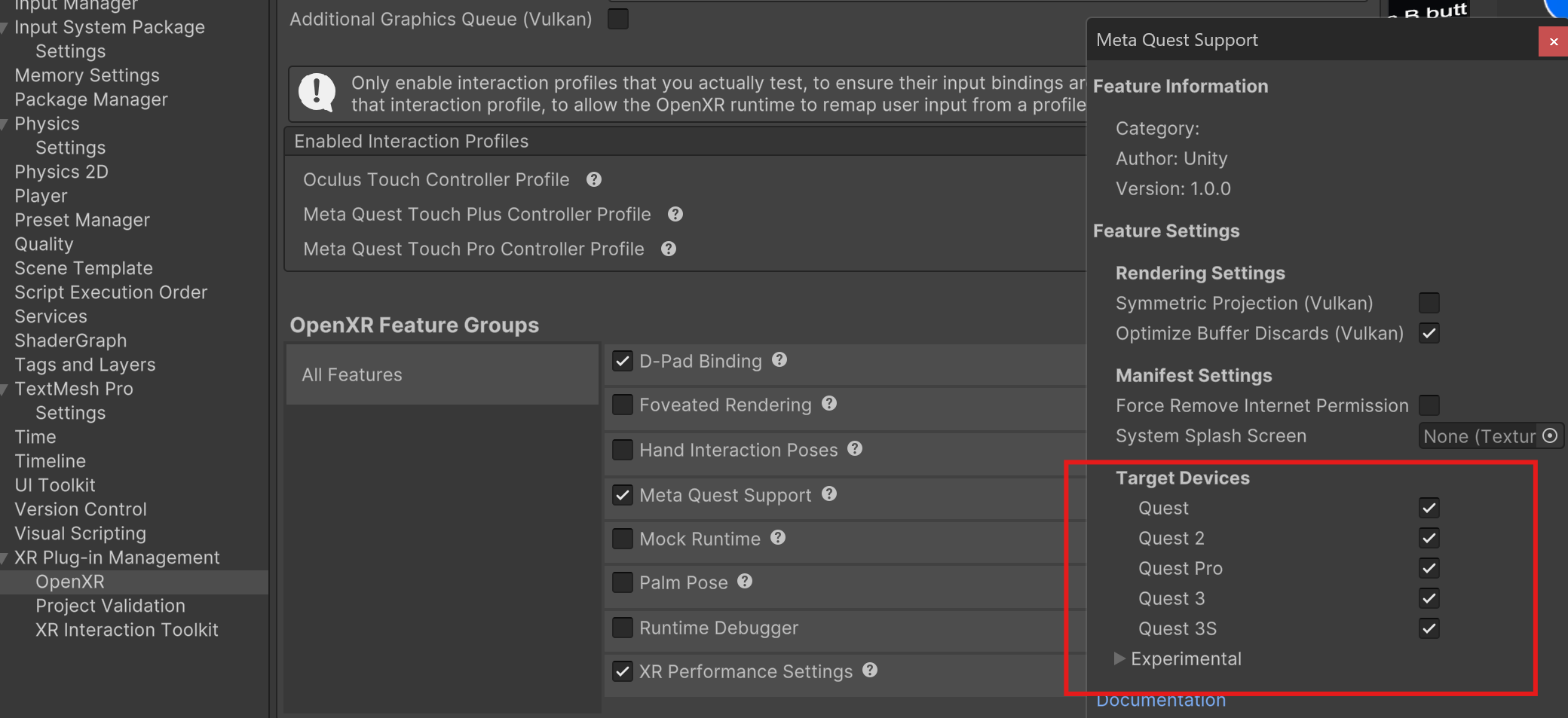
Lastly, click the settings cog for Meta Quest Support, and add the devices that you will include, not forgetting to add the Interaction Profiles.
Video Tutorials#
Coming soon
Video tutorials coming soon.